In some cases, you may already have a fully designed landing or sales page where all the product details are presented. In this situation, you may only need a simple Buy Now button so customers can quickly make a purchase.
This guide explains how to create a minimal payment button that does not display any product details, allowing you to seamlessly integrate it into your landing page.
This approach works especially well for long-form sales pages or custom-designed layouts.
Table of Contents
- When to Use This vs Templates
- Steps to Create a Simple Buy Now Payment Button
- How It Looks on the Front-End
- Customizing the Buy Now Button
When to Use This vs Templates
Use this simple button approach instead of the template-based option when:
- You already have a custom-designed landing or sales page
- All product details (price, features, images) are shown manually on the page
- You only need a clean Buy Now button for checkout
Steps to Create a Simple Buy Now Payment Button
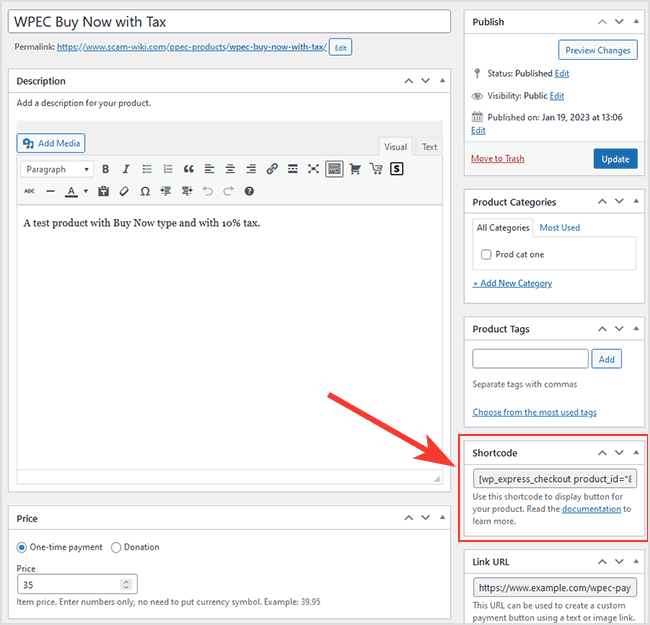
Use the standard shortcode provided by the plugin without the template parameter.
For example:
[wp_express_checkout product_id="1234"]
Replace 1234 with your actual product ID.
Refer to the screenshot below to see where you can copy this shortcode from:
Important Note
Make sure the “Show in a Popup/Modal Window” option is enabled in the product settings.
- When enabled → A clean Buy Now button is displayed, and checkout opens in a popup.
- When disabled → The PayPal checkout button(s) will be displayed directly on the page.
How It Looks on the Front-End
This shortcode will output a simple Buy Now button that you can place anywhere on your landing page.
See the example below:

Customizing the Buy Now Button
You can customize the button text and appearance to better match your landing page design.
- Button text can be changed from the plugin settings.
- The appearance can be customized using CSS.
Refer to this guide for examples:
The button uses the following CSS class:
wpec-modal-open
You can target this class to apply your own styling.