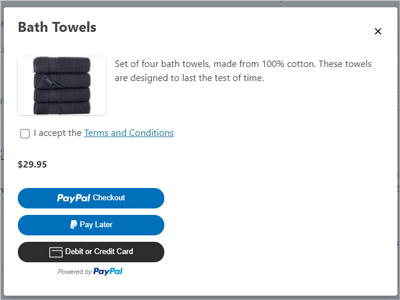
When you use the WP Express Checkout plugin to sell goods and/or services from your WordPress website, the good news is that your eligible customer base will be able to select to pay with Venmo.
Venmo is owned by PayPal and thus is an additional payment option on offer to those customers who reside within the United States. It allows you to pay with a debit or credit card, or with your Venmo account balance. Being able to offer Venmo while still offering PayPal gives your customers greater payment choices.
When you install and activate the WP Express Checkout plugin, the option to pay with Venmo is enabled by default. Those that meet the eligibility criteria to use Venmo (reside in an eligible location) will automatically see the ‘Pay With Venmo’ button for goods/services you sell from your website.
Table of Contents
- Eligibility for the Venmo Option
- Enabling and Disabling the Venmo Payment Button
- How Customers Can Pay with Venmo
Eligibility for the Venmo Option
The Venmo payment option is only available if all of the following conditions are met:
- Both the seller and the buyer are based in the United States.
- The transaction is processed in USD.
- Mobile buyers must use Safari on iOS or Chrome on Android.
- Desktop buyers can use any major web browser.
- The buyer must have the Venmo app (iOS or Android) installed.
- The payment must be a one-time payment (recurring payments are not supported).
If you are testing the Venmo payment option on a mobile device, ensure that you fulfill points #3 and #5 as listed in the above checklist.
Enabling and Disabling the Venmo Payment Button
By default, after installing and activating the WP Express Checkout plugin, any product you create will display a Pay with Venmo option (for eligible customers) beneath the Pay with PayPal button. While many merchants prefer offering multiple payment choices, you may wish to remove Venmo as an option. If so, you can disable it by following these steps:
- Click on the WP Express Checkout → Settings menu.
- Open the PayPal Settings tab and then select the Button Appearance sub-tab.
- Scroll down to the section titled Disable Funding.
- Tick the checkbox next to Venmo to disable this funding option.
- Scroll to the bottom of the page and click Save Changes.
Once disabled, customers will no longer be able to use Venmo as a payment method for purchases made through the WP Express Checkout plugin.
How Customers Can Pay with Venmo
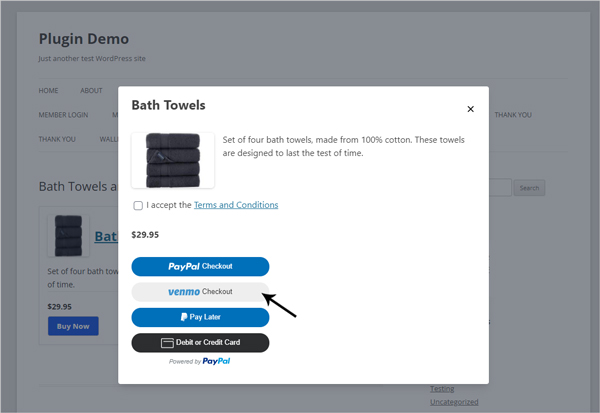
The Venmo payment option appears alongside the PayPal checkout choices in the popup window once a customer clicks the Buy Now button. To pay with Venmo, the customer simply selects Venmo Checkout and completes the payment details in the popup.
If you disable Venmo Payments, the Venmo option will no longer appear in the payment window. Customers will only see the standard PayPal options, as shown in the screenshot below.