The WP Express Checkout plugin primarily uses PayPal as its default payment gateway, providing a fast and reliable way for customers to complete purchases. In addition to PayPal, the plugin also supports Stripe as an alternative payment method. Enabling Stripe gives your customers the flexibility to choose their preferred payment option at checkout, enhancing convenience and potentially increasing conversion rates.
To successfully configure the Stripe integration within this plugin, it is necessary for you to have a Stripe account. In the event that you don’t already have an account, please ensure that you create one prior to proceeding with the configuration process.
How to Enable Stripe Checkout
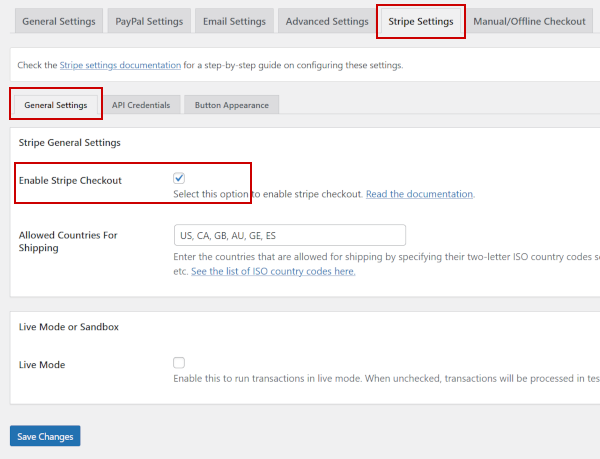
- Log in to your WordPress admin dashboard.
- Navigate to WP Express Checkout » Settings.
- Click on the Stripe Settings tab.
- Check the box labeled Enable Stripe Checkout.
- Save the changes.
Getting Your Stripe API Credentials
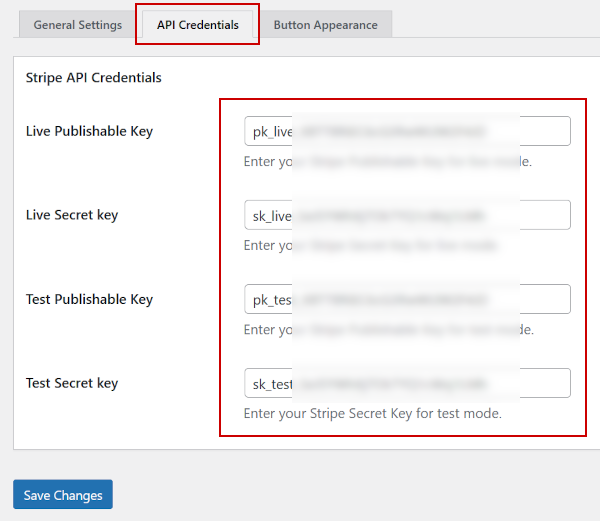
Once you have enabled Stripe in the plugin settings, you need to input your API Keys. These keys connect your specific Stripe account to the WP Express Checkout plugin. You will need two sets of keys: one for Test Mode (for testing transactions) and one for Live Mode (for real sales).
To obtain the Stripe API credentials (public and secret keys) for both test and live accounts, follow these steps:
You need to copy and paste the Live Mode and Test Mode API Keys into the corresponding settings fields. Don’t mix them up. So make sure you are setting your Stripe account to “Live Mode” first then copy the live mode API Keys into the corresponding fields. Next, set the Stripe account to “Test Mode” and copy the API keys for test mode. If your Stripe account has not been approved for live transactions yet, then you may need to do the steps to get your live API keys at a later time.
- Sign in to your Stripe Account Dashboard.
- Navigate to the Developers section.
- Click on API Keys.
- Copy the “Publishable key”.
- Click on the “Reveal test key” button to reveal the secret key.
- Do the above steps for both live and test mode.
- Copy and paste the keys into the settings menu of the plugin.
- Save the settings.
Where does the Stripe Checkout Option Appear?
Once you activate the Stripe option, it will display the Stripe checkout button within the payment popup window. See to the following screenshot for reference.
