The Manual/Offline Checkout feature in the WP Express Checkout plugin allows customers to place orders without making an immediate online payment. Instead, they can complete their purchase using offline payment methods such as bank transfers, cash on delivery, or in-store payments. This feature is ideal for businesses offering alternative payment options, in-store pickups, or operating in regions where online payments are less common.
Table of Contents
- Enabling Manual/Offline Checkout
- Customer Experience at Checkout
- Post-Purchase: Mark Order as Paid
- Tips for Best Use
Enabling Manual/Offline Checkout
To activate and configure the Manual/Offline Checkout feature, follow these steps:
- Access Plugin Settings:
- Navigate to the WP Express Checkout settings in your WordPress admin dashboard.
- Locate the Manual/Offline Checkout tab.
- Enable the Feature:
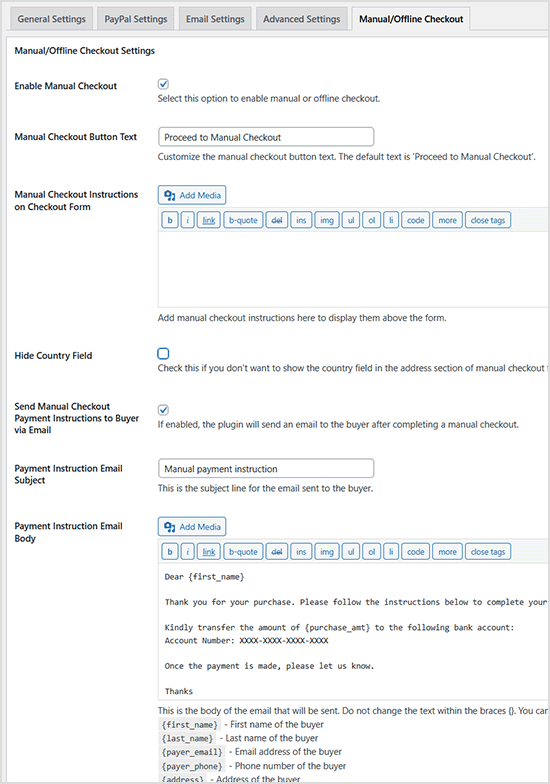
- Check the box labeled Enable Manual Checkout to activate this payment option.
- Customize Instructions (Optional):
- In the Manual Checkout Instructions on Checkout Form field, provide clear instructions for customers to follow during checkout. For example:
- “Please visit our store at [Your Address] to complete your payment in cash.”
- “Make a bank transfer to [Bank Details] and include your order number in the reference.”
- These instructions will appear on the manual checkout form for customers using this option.
- In the Manual Checkout Instructions on Checkout Form field, provide clear instructions for customers to follow during checkout. For example:
- Enable Email Notifications (Optional):
- Enable the Send Manual Checkout Payment Instructions to Buyer via Email option to automatically send customers the payment instructions after they submit their order.
- Customize the email content in the Payment Instruction Email Body field to include details like bank account information or in-store pickup instructions.
- Save Changes:
- Click Save Settings to apply your configurations.
View the screenshot below for a visual guide.
Customer Experience at Checkout
When enabled:
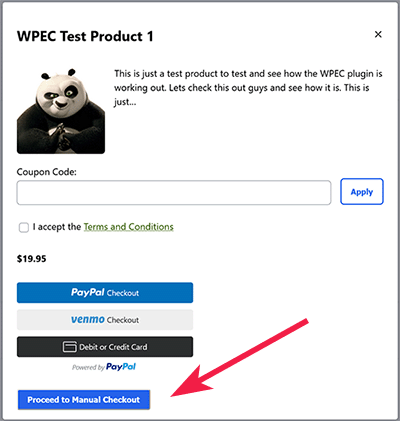
- The customer selects Manual/Offline Checkout at checkout.
- A form appears prompting for required details (e.g. name, email, address etc).
- The order is submitted without processing an online payment. It is recorded in the Orders menu with a Pending status, and the buyer is shown your offline payment instructions.
View the screenshot below for a visual guide.
Post-Purchase: Mark Order as Paid
After receiving the offline payment, follow these steps:
- Go to WP Express Checkout → Orders and locate the order.
- Open the order and find the “Order Actions” metabox section.
- Click the “Set Order as Paid & Send Email” button.
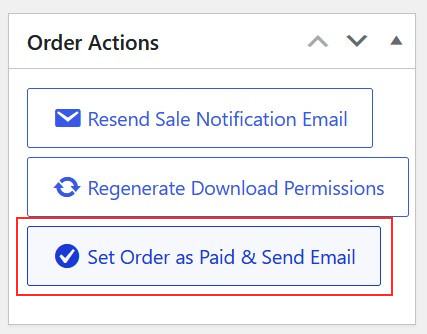
This action will:
- Update the order status to “Paid”
- Send the order confirmation/notification email to the buyer
For digital products, the email will include the download link. For physical products, you can proceed with shipping the item.
This process mirrors the standard PayPal or Stripe checkout flow, with the main difference being that the payment confirmation is performed manually by the merchant.
Tips for Best Use
- Clear Instructions: Ensure your checkout instructions are specific and include all necessary details (e.g., bank account numbers, store address, or contact information).
- Test the Flow: Place a test order to verify that the checkout form, instructions, and email notifications work as expected.