This documentation takes a closer look at how a subscription can be canceled, either by the merchant from the WordPress dashboard or by the customer.
To handle subscription payments with the WP Express Checkout plugin, you will need to have the Subscription Payments Addon installed and activated on your WordPress website.
Table of Contents
How Can I Cancel a Subscription as a Merchant?
Merchant Option 1: Cancel from WordPress Dashboard
You can easily cancel any active PayPal or Stripe subscription directly from your WordPress dashboard.
Navigate to the Subscriptions menu to view a list of all subscription transactions on your site. Each entry displays the following details:
- Subscription ID
- Status (active, expired, or canceled)
- Subscription Start Date
- Customer Email
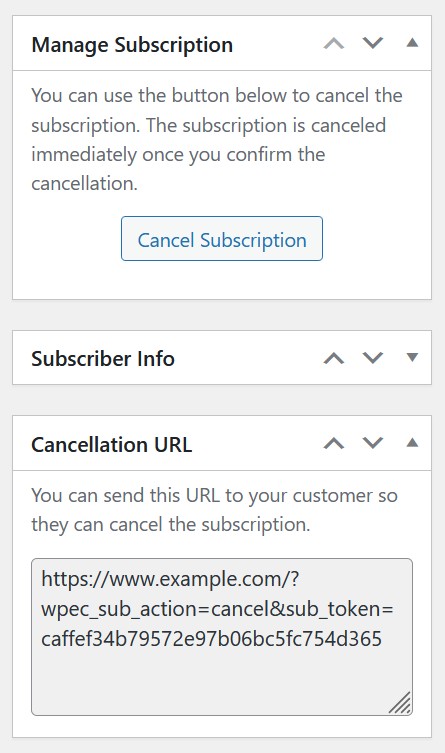
To manage a specific subscription, click the View Details button next to its ID. From the details screen, you can review the subscription’s full information and cancel it if needed.
If you have a large number of subscriptions, use the Search Subscriptions field to quickly locate a specific record by ID or email.
Merchant Option 2: Cancel From PayPal or Stripe Dashboard
In addition to canceling subscriptions from your WordPress dashboard, you can also cancel them directly from your PayPal or Stripe merchant account.
How Can My Customer Cancel a Subscription?
WP Express Checkout provides two convenient ways to give your customers the ability to cancel their own subscription without needing you to do it manually from the dashboard.
Option 1: Sending a Cancellation URL to the Customer
If a customer contacts you requesting to cancel their subscription, you can send them a unique cancellation link directly.
To retrieve the link, go to Subscriptions in your WordPress dashboard, click View Details next to the relevant subscription, and copy the cancellation URL shown on the details page. Once the customer clicks this link, they will be guided through the cancellation process, and the subscription will be canceled automatically.
Option 2: Including a Cancellation Link in the Notification Email
You can make the cancellation link available to every customer automatically by adding a merge tag to the Buyer Email Body in the plugin’s email settings. This email is sent to the customer after a successful purchase, so including the cancellation link here ensures every subscriber has a self-service option from day one.
Add the following merge tag anywhere in the email body:
{sub_cancel_url}
When the email is sent, this tag is automatically replaced with the unique cancellation URL for that customer’s subscription. Clicking the link will take them through the cancellation flow — no merchant action required.